Open Camera Help
< Main Page.
Contents:
- Quickstart
- On-Screen User Interface
- Auto-level feature
- Noise Reduction
- DRO
- HDR
- DRO vs HDR
- NR vs HDR
- Panorama
- Settings
- Widgets and tiles
- Remote control
- FAQ
- Contacting me (bugs etc)
Quickstart
Simply point, and press the blue camera icon  to take a photo. If your device supports focus areas, you can touch the part of the screen you want to focus. Touching an area will also (if your device supports it) control the exposure level (e.g., so clicking on a bright area will adjust the exposure so that it becomes less bright). To zoom, use the slider next to the take photo button, or do a multi-touch 'pinch' gesture. You can also control via the volume keys on your phone or tablet - by default, pressing them will take a photo, but you can change this to zoom in/out from the Settings.
You can press the gallery icon to view your photos (by default saved in the OpenCamera folder) - it will show the most recent image or video. The gallery button's icon will also show a thumbnail for the most recent image/video.
The screen display is kept on when Open Camera is running as the foreground app (if you want to switch off the display, do so on your device manually).
On-Screen User Interface
Take photo - Click to take a photo. In some cases, you can also hold (long press) for a continuous burst:
- Photo mode must be Standard or Fast Burst
- Settings/'Camera API' must be set to 'Camera2 API'.
- Continuous burst only supported on some devices and resolutions.
 Switch to video mode - Clicking the smaller video icon will switch to video mode. The photo and video icons will then swap: click the larger video icon to start/stop video recording, and click the smaller photo icon to switch back to photo mode.
 Switch camera - Switches between front and back camera (if your device has both front and back cameras). If your device has more than one front and/or back camera, then this will switch between the first front and back camera.
 Switch multi-camera icon - This icon only shows on devices with more than one front and/or back cameras, and allows you to switch between those cameras. For example, a device might have two back cameras, one standard and one ultra-wide, this icon will switch between the standard and ultra-wide camera. If Settings/On screen GUI/'Multiple cameras icon' is disabled, then this icon will not show; instead the 'Switch camera' icon can by used to cycle through all the cameras. Note that some devices do not allow third party applications to access their multiple cameras, in which case Open Camera isn't able to use them.
 Exposure lock - Click to lock or unlock the exposure. When locked, the icon will change to
  . Locking the exposure means the exposure doesn't change based on the brightness of the current scene (though you can still adjust the exposure compensation). Note that this isn't guaranteed to work on all devices (doesn't seem to work on Galaxy S3, Nexus 6).
 Exposure compensation, ISO and Manual White Balance - Clicking this will bring a panel with various controls:
- ISO (top row) - (Not supported on all devices.) A higher ISO setting means the camera is more sensitive to light, though may also result in more noise. This mimics the film speed on traditional film cameras. Select 'AUTO' to switch back to automatic ISO mode. See here for more details on ISO. If Camera2 API is used, then selecting a non-auto ISO will bring up sliders allowing direct control over the ISO and exposure time (in place of the exposure compensation slider). You can also select 'M' to switch straight to manual mode, keeping to the current ISO value.
- Exposure compensation (slider) - A higher value increases the exposure, so that pictures come out brighter in low light; a lower value makes pictures darker. One unit of EV changes the brightness of the captured image by a factor of two. +1 EV doubles the image brightness, while -1 EV halves the image brightness. Set to 0 for the default exposure. See Exposure compensation. (Only available if the camera supports control of the exposure.)
- ISO and shutter speed sliders - If Camera2 API is used, and a non-auto ISO mode is selected, instead of the exposure compensation sliders, two sliders will appear allowing you to control the ISO more finely, and (if supported) the exposure (shutter speed) time.
- Manual white balance - If Camera2 API is used, and manual white balance is enabled (from the popup menu), then this will also show a slider allowing you to control the white balance temperature.
To get rid of this panel, either click the Exposure button again, or click elsewhere on the screen.
 Popup menu - Opens the popup menu for quick access to changing various options:
- Flash - Typical options are off, auto, on and torch mode. For front cameras without a real flash, flash and torch options will be available which instead work by making the screen light up (note, front screen flash 'auto' is only available with Camera2 API).
- Focus - Controls the focusing method used. Available options depend on your device. These may include:
- Photo Mode - You can also choose different photo modes:
- STD - Standard operation: takes a single photo.
- NR - Enables Noise Reduction mode. (Only available on some devices, and if Camera2 API is used.)
- DRO - Enables Dynamic Range Optimisation mode (requires Android 5).
- HDR - Enables High Dynamic Range mode (requires Android 5).
- Pano - Enables Panorama mode (requires Android 5).
- []]] - Enables Fast Burst mode. Takes multiple images in quick succession. (Only available on some devices, and if Camera2 API is used.) In this mode, you can change the number of photos to take from the popup menu.
- Expo {} - Enables Auto Exposure Bracketing (AEB) mode. Takes multiple images at different exposure levels. See Settings/'Photo settings' for options to control the number of images and stops. These images can be processed in other applications to create HDR images. For Android, you can try my own Vibrance HDR.
- Focus {} - Enables Focus Bracketing mode. (Only available on some devices, and if Camera2 API is used.) This mode takes a series of photos each with a different focus distance. Two sliders appear, allowing you to change the 'source' and 'target' focus distance. In this mode, you can change the number of photos to take from the popup menu. Also on the popup menu, the option 'Add infinite distance' if enabled will mean an extra photo is taken, at infinite focus distance. Focus bracketing is typically used with Focus stacking software to merge the images into a single photo. Note that whilst taking a set of focus bracketed photos, you can cancel the set by pressing the 'take photo' button again. Also see the options 'Focus assist' and 'Focus peaking' under Settings/Camera preview/ which may be useful when adjusting the focus distances.
- Auto-level - Enable the auto-level feature for photos (see below). (Only available if the device has enough memory.)
- Aperture - Allows changing the current camera aperture. Large numbers mean smaller aperture, which means less light is allowed into the camera. (Only available on some devices, and if Camera2 API is used.)
- Camera resolution - Change the photo resolution (also available under Settings/Photo Settings/'Camera resolution'.
- Video resolution - Change the photo resolution (also available under Settings/Video Settings/'Video resolution'.
- Speed - This allows you to record video at either a faster rate (time lapse) or slower rate (slow motion). Note that slow motion is only available on some devices, and requires Camera2 API to be enabled. Also note that sound is not recorded in time lapse or slow motion modes.
- Timer - Set a timer for taking photos or recording video. Also available under Settings/Timer.
- Repeat - Take a repeated set of photos when the take photo button is pressed. The time interval between each repeated photo can be set under Settings/'Repeat mode interval'.
- Grid - Whether to display one of a choice of grids on the camera preview. Also available under Settings/Camera preview/'Show a grid'.
- White balance - Choose a method to control how the white balance is set. See here for an explanation of white balance. (Only available if the camera supports different white balance settings.) If Camera2 API is enabled, then you can also set 'manual'. In this mode, manual control over the white balance temperature is available from the exposure compensation icon .
- Scene mode - Choose a scene mode to apply. (Only available if the camera supports scene modes.)
- Color effect - Choose a color effect to apply. (Only available if the camera supports color effects.)
 Settings - Click to open the Settings. (If your phone/tablet has a hardware menu button, pressing that should also open the settings.)
Gallery - Click to launch the Gallery app, to view the most recent photo/video (by default saved in the OpenCamera folder). If you get the message 'No Gallery app available', then you should install a Gallery app. You can also 'long press' on the Gallery icon - this will let you switch between the recent save locations, or take you straight to a dialog to choose a save location if additional locations have yet been defined. See Save location under Settings/More camera controls for more details.
 Pause video - When recording video, this icon allows you to pause and then resume video recording. (Requires Android 7.0 or higher.)
 Take photo snapshot - When recording video, the switch to photo mode icon turns white - selecting it will now take a photo while recording video. Note that different photo modes are not supported when taking photos while recording video, nor is RAW supported. The photo resolution will not in general match the resolution set in preferences, rather it will be set automatically (usually to match the aspect ratio of the video resolution).
In continuous focus mode, a white circle shows to indicate that the camera is focusing. When touching to focus, or in autofocus mode, a white square is shown (depending on the focus mode), which turns green to indicate that the auto-focus was successful, or red if it was not.
The on-screen display also shows the remaining battery left (green/red status bar in the corner), and optionally the zoom level (if zoomed in), the remaining free storage space on the device, and the current angle orientation of the camera. If 'Store location data' is enabled (off by default), then a small GPS icon  will appear at the top left when the location is available (you can still take photos when the GPS icon doesn't show, it's just that location data won't be stored in the photo). A dot shows to the top-right of the GPS icon to indicate the accuracy (green for accurate, yellow for less accurate, grey if waiting for location but using a recently cached location). If the location isn't available, a dash will be shown through the gps icon.
Auto-level feature
All mobile phone cameras will rotate the photo depending on the orientation of the camera, but only to the nearest 90 degrees - so the photos look right whether you hold the device in 'portrait' or 'landscape' mode. But Open Camera has the option to rotate the photos so they are perfectly level, so your shots come out looking perfectly level every time!
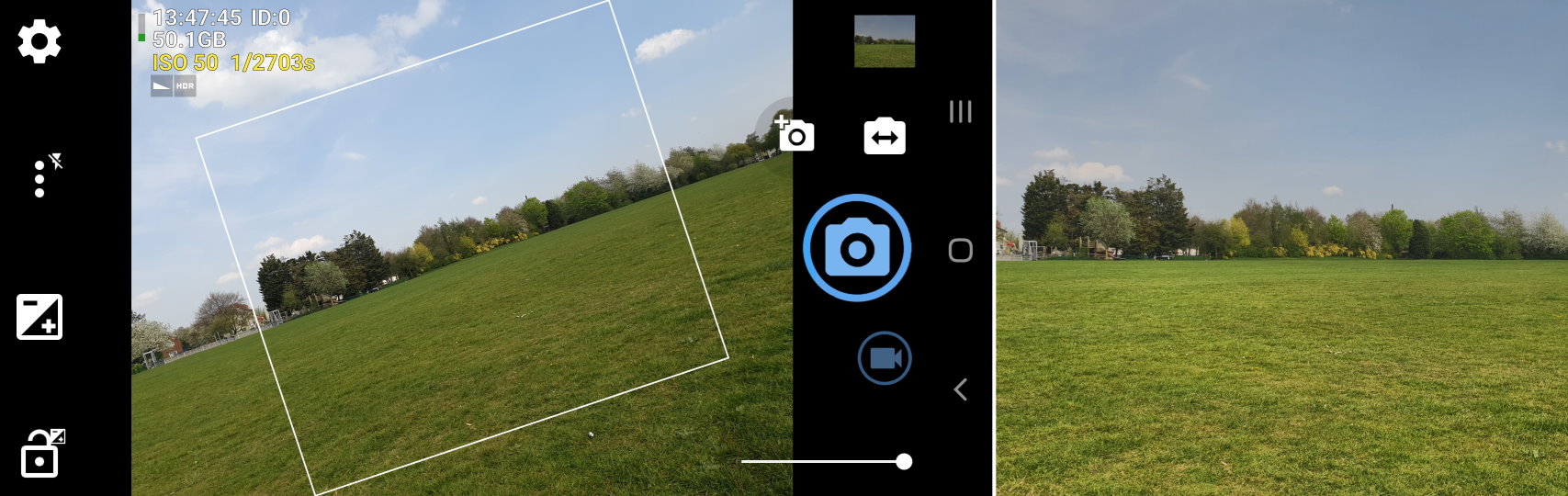
The above shows a rather exaggerated example - in practice, you can probably take better photos, but this feature ensures they come out perfectly level, without you having to edit them afterwards in a photo editor. Of course you won't always want this - perhaps you're going for artistic 45-degree shots - so this is an option. By default it is disabled. To enable, open the Popup menu, and enable 'Auto-level'. Note that this feature is memory intensive - it will not be available on devices with low memory. Even where it is available, the performance of taking photos will be slower.
Also note that the feature reduces the available space in the image - because rotating an image makes it no longer fit into a rectangular image, so we have to crop it. So it's still advisable to try to hold the camera reasonably level when using this feature. When auto-level is enabled, an on-screen rectangle will display the frame of the resultant rotated photo (note that this won't necessarily be 100% accurate depending on device/resolution, in the same way that normally the preview frame may not perfectly match the resultant photo - this will especially be true if Settings/Camera preview/'Preview size' is set to 'Maximise preview size'.
Note that auto-stabilising will not occur if the device is pointing up or down.
Noise Reduction
In Noise Reduction photo mode, Open Camera takes a burst of photos which are then automatically merged, to improve photo quality. This is particularly useful in low light scenes to reduce noise.
Some things to note about Open Camera's NR feature:
- In dark scenes, NR will also apply pixel binning, merging 4 pixels into 1 to reduce noise. Therefore in such cases , the resultant photo resolution will be halved in width and height.
- In bright scenes where there is a high dynamic range, NR mode will perform better than Standard at capturing the dynamic range. This is similar to what Open Camera's HDR mode can achieve. Also see NR vs HDR.
- Taking photos with NR is significantly slower than regular photos.
- Although Open Camera applies auto-alignment to the images, it's still best to try to hold your device steady while the photo is being taken. Aside from reducing the risk of ghosting effects, the more steady the camera is, the more effective the noise reduction algorithm is in reducing noise and enhancing detail.
- If you have a Google Pixel with Pixel Visual Core, you should get Google's HDR+ photos when using Open Camera's Standard photo mode, so there is generally little benefit to using Open Camera's NR mode on these devices. See 'Does Open Camera support HDR+' in the FAQ for more details.
In Noise Reduction photo mode, an additional 'NR mode' option will appear on the popup mode. This defaults to Normal, but you can change to 'Low Light' mode, which further improves results in dark scenes. If Open Camera detects poor light in this mode, it will take a burst of images for a duration of around 5 seconds. For best results, use a tripod, or try to hold the camera as steady as possible.
DRO
Dynamic Range Optimisation (DRO) is a technique that optimises the dynamic range available in the image. In particular, dark regions will have their brightness boosted to bring out the detail. This mode is useful for capturing scenes with a wide range of brightness (e.g., on a bright sunny day) as well as being useful to automatically optimise photos in low light scenes. Also see DRO vs HDR.
Note that if Camera2 API is used, DRO will give improved quality in bright scenes.
HDR
High Dynamic Range Imaging (HDR) is a technique where the camera takes multiple shots at different exposures, and combines them into a single image. A typical problem in photography is that a scene may contain a brightness range that is wider than what can be captured in a single shot. Varying the exposure (whether by touching on the screen, or exposure compensation or manual exposure) might make darker regions brighter, but leave other areas over-exposed. Or reducing the exposure to prevent over-exposure may result in the rest of the scene being too dark. HDR uses an algorithm to combine the best parts of each image, and adjusts the colors so that the full range of brightness values are captured in the scene:
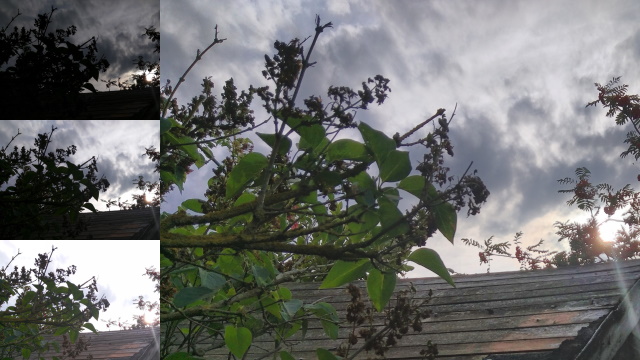
The left set of three images show the individual exposures, the right the final HDR image.
Some things to note about Open Camera's HDR feature:
- Taking photos with HDR is significantly slower than regular photos (although note that HDR will give much faster performance if Camera2 API is enabled, see Settings - not all devices support this).
- HDR isn't so good for scenes with movement, due to combining an image from multiple shots. Open Camera does apply 'deghosting' to reduce the problem, but this isn't perfect.
- Although Open Camera applies auto-alignment to the images, it's still best to try to hold your device steady while the photo is being taken.
- HDR can sometimes result in less accurate color reproduction (due to trying to estimate the colors from multiple exposures).
- Some camera apps use 'HDR' to mean 'apply a whacky-looking filter'. Whilst HDR filters can be used to apply a rather unreal or vivid image, for now Open Camera's HDR is more geared towards capturing the range of exposures. Also note that many camera apps that advertise 'HDR' don't even make use of multiple images - this is more a case of filtering, than HDR.
- If you have a Google Pixel with Pixel Visual Core, you should get Google's HDR+ photos when using Open Camera's Standard photo mode, so there is generally little benefit to using Open Camera's HDR mode on these devices. See 'Does Open Camera support HDR+' in the FAQ for more details.
DRO vs HDR
Both DRO and HDR share in common that they are ways to handle wide ranges of brightness. They each have their pros and cons:
- DRO requires only a single image from the sensor, so shots are fast to take, and fine for scenes with movement, unlike HDR.
- Photos will still take longer to process compared with Standard photo mode, but it will still be faster than HDR.
- HDR will in general be better at scenes with a high range of brightness values. It can take advantage of the information from three separate images, rather than reprocessing a single image.
NR vs HDR
In scenes with high dynamic range, HDR should do better at capturing the high dynamic range (although NR should still be better than Standard photo mode). Though NR still has the advantage that it is less prone to ghosting and misalignment. NR is also better suited to working in a wide range of scenes.
In summary: NR is better if you just want a 'works best in most cases' option. HDR may be a better choice specifically in scenes with high dynamic range, that also don't have movement in the scene.
Panorama
Panorama photo mode allows creating wide photos, by stitching together multiple separate photos.
To take a panorama image, hold your device in portrait orientation, and click to take a photo to start the panorama. Two blue circular dots will then appear. Rotate your device about the device's axis, either to the left or right, to move the centred white circle over one of the blue dots, which will allow the camera to capture another image. After each new image is captured, keep rotating your device to cover each new blue dot that appears in turn. If the device is tilted to one side too much, an icon will appear to indicate you need to rotate the device clockwise or anti-clockwise.
Click the tick icon to save the panorama, or the cross icon to cancel. Or the panorama will automatically save after 10 images have been captured.
For best results, try to keep your device steady, apart from rotating about the device's axis. Note that panorama photos can take time to process and save.
Note that the following options are not supported with panorama:
- Timer.
- Auto-repeat.
- Immersive mode.
- Pause after taking photo.
Settings
Camera Controls:
Face detection - If this is enabled, then the camera will automatically try to detect faces, and use them for the focus, metering (exposure) and white balance. Faces will be drawn as yellow squares when detected.
- If this option is enabled, then you will not be able to touch to manually select the focus area, and the white balance option will have no effect (since the face recognition will be used to determine these).
- If Camera2 API is enabled, then the scene mode option will also have no effect (again since the face recognition option overrides this).
- If you are using an accessibility service such as Google Talkback, information about the number and location of detected faces will be reported when face detection is enabled.
Timer - Set a timer for taking photos or recording video. Press the take photo/video button again to cancel the timer.
Repeat mode interval - Specify the delay (if any) between photos in repeat mode. Note that if a delay is selected, note that this does not include the time taken to auto-focus and take each photo. Similarly, 'No delay' still means there will be some time between each photo. If you want to take a burst of photos, use the Fast Burst photo mode, or long press the 'take photo' button in Standard or Fast Burst photo modes. (Burst mode only supported on some devices; requires Camera2 API to be enabled).
More camera controls... - Select to access the following controls:
Touch to capture - This option allows you to take a photo either just by touching or double-tapping on the preview screen. Note that starting/stopping video recording is still performed in the normal way; this option only affects taking photos.
Pause after taking photo - If ticked, after taking a photo the display will pause, with options to share  or delete
  the photo. To keep the photo and continue, touch the screen, press back, or take another photo. Note that this isn't supported when holding the shutter button to take a continuous burst of photos.
Shutter sound - Whether to play a sound after taking a photo. (Requires Android 4.2 or higher to disable, and even then isn't supported on all devices.) For Camera2 API, this also controls whether to play a sound for start/stop video recording.
Timer beep - Whether to beep when the timer is counting down, or for the repeat mode delay (see below).
Voice timer countdown - Whether to give a voice countdown when the timer is counting down, or for the repeat mode delay (see below).
Volume keys - You can set what happens when your device's volume keys are pressed:
- Take photo or start/stop video (depending on photo/video mode).
- Trigger an autofocus - or if in manual mode, change the focus distance in/out. In this mode, holding down both volume keys will take a photo (or start/stop video). This makes your volume keys behave more like a physical camera button - hold down one key to focus, then both to take a photo.
- Zoom in/out.
- Change the exposure compensation (or if in manual ISO mode and using Camera2 API, change the ISO).
- Switch auto-level on/off.
- Change the device's volume as normal.
- Do nothing.
Audio control options - If enabled, this allows taking a photo (or starting video recording, depending on the mode) by making a noise. An on-screen microphone button  will appear, to start/stop listening. The 'loud noise' option will listen for any noise (so you can remotely take a photo by saying 'cheese', whistling, or whatever you prefer). Note that leaving the listening turned on may use additional battery. The 'voice command' option listens specifically for saying 'cheese' - so this has the advantage that it's less likely to be triggered unintentionally. Note that this can't be used to stop video recording - if you want to have some remote control on video recording, see the 'Max duration of video' option.
Audio control sensitivity - This controls how sensitive Open Camera is to noises, if 'Audio control' is set to 'Loud noise'. If you find it's taking photos too often unintentionally, or isn't responding to your sounds, try adjusting this option.
Bluetooth LE remote control - Open Camera supports connecting to some specific 'smart housing' cases via the options in these settings. See 'Remote device type' for supported types. At the time of writing, only one make/model is supported. Once connected via Bluetooth, it should be possible to control Open Camera from the device. The on-screen display of Open Camera will also display information from the housing (temperature and depth).
Lock photo/video orientation - Normally the orientation of the photo/video will be rotated by some multiple of 90 degree such that the orientation looks right - e.g. if your device is held in portrait, the resultant image/video will be in portrait. This option allows fixing the camera to either be in portrait or landscape. Note that if auto-level is also enabled, it will have the effect of aligning photos to the nearest 90 degrees.
Save location - Select the folder to store the resultant photos or videos in.
- On Android 9 or earlier: This opens a file dialog. Click on a folder (or 'Parent Folder') to navigate through the filesystem. Select 'New Folder' to create a new folder in the currently displayed folder. Select 'Use Folder' to choose the currently displayed folder. Note that on Android, there are some folders that cannot be written to - Open Camera will display a message if you try to use one of these folders.
- On Android 10 or later: This opens a dialog to type the name of the folder. This will be a subfolder of DCIM on your internal storage. You can specify subfolders with the '/' character. For example, specifying Camera/holiday will save inside DCIM/Camera/holiday/ on your internal storage.
- If 'Storage Access Framework' is enabled: Then on any Android version, this option will show up the Android standard file chooser - navigate to the desired folder, and click 'SELECT' or 'ALLOW ACCESS' (wording varies depending on Android version).
Once you have specified a new save location, you can long press on the Gallery icon to quickly switch between recent save locations. If you want to save to an SD card, see 'How can I save to my external SD card?' under the FAQ.
Storage Access Framework - If selected, Open Camera will instead use the Android Storage Access Framework. This has some advantages, such as using the standard Android file picker, and being the only way to save to SD cards on Android 5+. In some cases it may allow you to save to cloud or local storage providers provided by other apps or services. Furthermore on Android 10+, it is the only way to save outside of the DCIM/ folder. (Requires Android 5.0 or higher.)
Save photo prefix - This option allows you to customise save filenames for photos.
Save video prefix - This option allows you to customise save filenames for videos.
Time format for filename - By default, Open Camera uses the local timezone for the save filenames, but you can also select UTC (Coordinated Universal Time / Zulu Time). For the latter option, a 'Z' will be appended to the filename (e.g., 'IMG_20160524_155116Z.jpg'). The Z (Zulu) suffix is a standard convention for identifying UTC timestamps.
Show camera when locked - If you have a lock screen on your device (e.g., PIN to unlock), if this option is enabled Open Camera will show above the lock screen - i.e., if locked, you won't have to enter the PIN to use Open Camera. The device still needs to be unlocked in order to go to the Settings or Gallery. If you would prefer Open Camera to always be unavailable when your device is locked, this option should be disabled.
Perform auto-focus on startup - Whether Open Camera should auto-focus when starting the camera. Some devices have a bug where the flash turns on when this happens, so a workaround is to disable this option.
Allow long press actions - Some icons support a 'long press' action (touching and holding on the icon). For example, long press on the gallery icon to change the save location, or in some cases long press on the shutter icon will enable a burst. If you prefer, you can disable these long press actions.
Calibrate level angle - The options Auto-level, 'Show angle' and 'Show angle line' rely on your device's ability to detect which orientation it's being held (the accelerometer). On some device's this might not be calibated correctly. If so, you can use this option to calibrate the acceleromer (or reset the calibration back to the default behaviour).
Camera preview... - Select to access the following controls:
Preview size - By default, Open Camera matches the aspect ratio of the preview (the image that is displayed on the phone/tablet's display) with that of the photo resolution ('Match photo size (WYSIWYG)' mode). The advantage is that what you see in the preview will match what will be in the resultant photo ('What-You-See-Is-What-You-Get') - though this may mean you will have 'black bars' on the display in order to do this. If instead you select 'Maximise preview size', then the camera preview will be as large as possible, trying to fill the available space. However if the resolution of the photo is a different aspect ratio to that of your device, this will result in the preview being cropped. In video mode, the preview is always in WYSIWYG mode.
- Note that Android 4.4.3 introduced a bug which means that the aspect ratio will be wrong if you select 'Maximise preview size' (i.e., the preview will look squished). To avoid this problem, stick with 'Match photo size'.
- Also note that even in 'Match photo size' mode, on some devices and resolutions, it may not be possible to match the preview to the resultant photo/video exactly; in such cases, Open Camera will try to match as closely as possible.
Ghost image - You can overlay a previous photo. This is useful for aligning photos (e.g., for stop motion animation). This can also be used to create a custom 'grid', by selecting an image with transparency.
- Last photo taken - When you take a photo, a ghost of that photo will be displayed. The ghost is reset either by leaving and returning to Open Camera, switching between photo/video modes, or turning this option off.
- Selected image - Select a specific image on your device to be displayed as a ghost (requires Android 5). Note that for this option, the ghost image will not be displayed if Open Camera is running when your device is locked. If the image doesn't show at all, it may be that Open Camera was unable to load the selected image.
Ghost image opacity - If a 'Ghost image' is selected, this option controls how transparent/opaque the ghost image should be drawn with.
Focus assist - If enabled, this will show a zoomed in view on the camera preview when in manual focus mode, and you are changing the manual focus distance. Similarly in focus bracketing mode, the preview will zoom in when changing the focus distances to bracket between. Note not supported when recording video.
Show zoom - Whether to display the current zoom level of the camera (when zoomed in).
Show angle - Whether to display the orientation angle of the device's camera.
Show angle line - Whether to display a horizontal 'level' line that visually indicates the orientation of the device.
Show pitch lines - Whether to display horizontal pitch lines that visually indicate the pitch of the device.
Angle highlight color - This controls the color to be used for the angle display and 'level' line when the camera is nearly level; and also for the 0 degree pitch line when the camera is held at nearly zero pitch.
Show compass direction - Whether to display the compass direction of the device's camera.
Show compass direction lines - Whether to display vertical lines that visually indicate the compass direction of the device.
Show battery - Whether to display the current battery level.
Show time - Whether to display the current time.
Show camera ID - For devices with multiple front/back cameras. Whether to display the currently used camera ID. This will be a value starting from 0, that distinguishes between the different cameras on your device.
Show free memory - Whether to display the remaining storage space of the device.
Show ISO - If selected, the current ISO, exposure time and frame rate (FPS) will be displayed (only available if Camera2 API is used). The text will be shown in red when the auto-exposure routine is scanning.
Show a histogram - Allows displaying an on-screen histogram (only available if Camera2 API is used). Note that the histogram reflects the currently display on-screen preview, and will not necessarily be accurate for the final resultant photograph, especially if modes such as NR, DRO, HDR are used. Also note that displaying a histogram may use more battery. The follow options are available:
- RGB Colors - Displays a histogram for each color channel.
- Luminance - The brightness is computed as a weighted average of the RGB components: 0.299*R + 0.587G + 0.114*B.
- Value - The brightness is computed as the maximum of the RGB components.
- Intensity - The brightness is computed as an unweighted average of the RGB components.
- Lightness - The brightness is computed as an average of the minimum and maximum of the RGB components.
Show zebra stripes - Allows displaying on-screen zebra stripes (also known as zebra patterning) to show whether the image is over-exposed (only available if Camera2 API is used). Note when using photo modes NR and HDR, a region that is shown as over-exposed on-screen may not necessarily be over-exposed in the resultant image, since these modes are able to better handle a high dynamic range. Also note that enabling zebra stripes may use more battery.
Zebra stripes foreground/background colour - If 'Show zebra stripes' is enabled, these options allow you to choose the colours of the stripes.
Focus peaking - Allows displaying on-screen highlights to indicate edges (contours) that are in-focus (only available if Camera2 API is used). This is particularly useful in conjunction with manual focus mode, to help show which regions of the image are in focus. Note that enabling focus peaking may use more battery.
Focus peaking color - This controls the color to be used for the highlights when 'Focus peaking' is enabled.
Show audio level meter - If selected, when recording video an on-screen meter will display the current audio level.
Show a grid - Whether to display one of a choice of grids on the camera preview. Grids are useful in photography to help compose your image. Options are:
- 3x3 - helps with applying the rule of thirds.
- Phi 3x3 - 3x3 grid with ratios 1:0.618:1.
- 4x2
- Crosshair
- Golden - displays a Golden spiral (or technically, a Fibonacci spiral). You can use this to improve your photography.
- Golden Triangles
- Diagonals
Show a crop guide - A crop guide is a rectangle displayed on-screen, which has the specified aspect ratio (if different to the photo/video aspect ratio). This is useful if you plan to crop the resultant photos or videos to a particular aspect ratio. For photos, the crop-guide requires 'Preview size' to be set to WYSIWYG mode.
Show thumbnail animation - Whether to display the moving thumbnail animation when taking a photo.
Show border when taking photo - Whether to display a border effect when taking a photo.
Rotate preview - this option rotates the on-screen preview by 180 degrees (i.e., upside down). Most users won't ever need this, but this option can be useful if you are using Open Camera with equipment such as zoom lenses which invert the image. Note that this doesn't rotate the resultant photos/videos - you'll still have to rotate those yourself afterwards - but this will correct the preview so that you can still see what you are shooting properly.
On screen GUI... - Select to access the following controls:
UI placement - Allows you to choose between various layouts for the on-screen user interface icons.
Immersive mode - Allows you to choose between various modes which affect the behaviour of the user-interface, in order to make it more immersive (requires Android 4.4 or higher):
- Off - Don't use immersive mode, and on-screen virtual navigation buttons are always visible.
- Only dim on-screen virtual navigation buttons (default) - Don't use immersive mode, but on-screen virtual navigation buttons are dimmed. Note that some devices don't support virtual navigation buttons being dimmed, in which case this option is the same as 'Off'.
- Hide on-screen virtual navigation buttons - After a short delay, any on-screen virtual navigation buttons will disappear.
- Hide GUI - After a short delay, any on-screen virtual navigation buttons will disappear, along with most of the GUI buttons. To exit this immersive mode, either touch on-screen, or swipe in from the top/bottom sides when the device is held in landscape (or left/right sides if held in portrait).
- Hide everything - Same as 'Hide GUI', but when in immersive mode everything will disappear except the camera preview. This mode probably isn't useful for most people (since you need to exit immersive mode even to take a photo), but is available if you wish to only have the preview showing.
Show face detection icon - Whether to display an on-screen icon for enabling or disabling face detection. See Auto-level feature above for more details.
Show flash icon - Whether to display an on-screen icon for cycling through flash modes. If this is enabled, then flash modes won't show on the popup menu. Also note that it is not possible to enable the torch with this method.
Show auto-level icon - Whether to display an on-screen icon for enabling or disabling auto-level. See Settings/'Face detection' above for more details.
Show stamp photo icon - Whether to display an on-screen icon for enabling or disabling photo stamp. See Settings/Photo settings/'Stamp photos' for more details.
Show custom text stamp photo icon - Whether to display an on-screen icon for setting a custom text to stamp onto resultant photos. See Settings/Photo settings/'Custom text' for more details.
Show store location data icon - Whether to display an on-screen icon for enabling or disabling storing location data (geotagging). See Settings/Location settings/'Store location data (geotagging)' for more details.
Show RAW icon - Whether to display an on-screen icon for cycling through RAW modes (Standard, Standard+RAW, RAW only). See Settings/Photo settings/'RAW' for more details.
Show auto white balance lock icon - Whether to display an on-screen icon for locking or unlocking auto white balance.
Show auto exposure lock icon - Whether to display an on-screen icon for locking or unlocking auto exposure.
Show zoom -/+ controls - Whether to display -/+ buttons to control zoom.
Show zoom slider controls - Whether to display to a slider to control zoom.
Show 'Take Photo' icon - Whether to display the icon for taking a photo (or recording video). Uncheck if you'd rather take photos by other methods (e.g., if your device has a hardware shutter button, or using the volume keys).
Show on-screen messages - Open Camera will sometimes display temporary on-screen text with information (in some cases using 'toasts'). This option can be used to disable them.
Show What's New dialog - When updating to a major new version, Open Camera displays a dialog explaining the new features and other options. You can disable this dialog from being displayed if you prefer.
Multiple cameras icon - This option only shows on devices with more than one front and/or back cameras. When enabled (the default), such devices will have two on-screen icons: one to switch between front/back cameras, and another to switch between the multiple front or back cameras. If this option is disabled, only a single icon will show, which will cycle between all cameras.
Keep display on - Whether to force keeping the screen display on, while the main Open Camera UI is active.
Force maximum brightness - Whether to force the screen display to maximum brightness.
Photo and Video Settings:
Photo settings - Select to access the following controls:
Camera resolution - Select the resolution of photo images taken by the camera.
- If auto-level is enabled, images will in general come out as a slightly lower resolution (due to the rotation and cropping that's required).
- Note that in some photo modes, the actual photo mode may be different to that selected here. For example, advanced photo modes such as HDR, NR, Fast Burst, Expo Bracketing may have a maximum supported resolution - if the resolution selected here is too high, the largest allowed resolution will instead be used. To see the resolution currently used (or to change it), see the 'Camera resolution' setting on the popup menu.
- The resolution setting is ignored altogether in Panorama mode.
Image quality - The image quality of saved JPEG or WebP images. Higher means better quality, but the image files will take up more storage space. Note that 100% does not necessarily mean there is no lossy compression, rather that there is minimum compression. Also note this option has no effect if 'Image format' is set to PNG.
Image format - The image file format for saving photos:
- JPEG - This is the fastest option. Also note that only JPEG supports saving various photo metadata (Exif), including camera details, location, and artist/copyright tags.
- WebP - This is an alternative (lossy) file format to JPEG. It offers smaller file sizes, but saving takes longer, and some applications may not support WebP images. Note that WebP images are generated by converting from a JPEG with 100% quality (since the Android camera API does not have native WebP output).
- PNG - This is a lossless format, but note that file sizes will be large, and saving will take significantly longer. Note that this doesn't mean there will be absolute no loss in quality: cameras on Android offer images in JPEG or RAW (DNG) file formats. When using PNG, Open Camera receives the JPEG with the quality set to 100%, and converts to PNG - this means that there is minimal lossy compression. The only way to have truly lossless is via RAW (see option below).
RAW - Only available if Camera2 API is used. If set to 'Standard and DNG (RAW)', then photos will also be saved in RAW (DNG) format. If set to 'DNG (RAW) only' (requires Android 7), then photos will only be saved in DNG format. DNG stands for 'digital negative', and contains the full uncompressed and unprocessed information from your camera. Please note the following points:
- Some gallery applications don't recognise DNG files - if this is the case, you won't even see them listed. Either install a gallery application that does, or use specialised RAW viewer or editing tools. Or transfer to a PC to use DNG editing applications there. Note that newer versions of Android (7 onwards) seem to have better support for DNG images.
- If your gallery application doesn't show DNG files, a file explorer application may also be useful, to delete DNGs if you don't want them (DNGs take up a lot of space - and won't be deleted when you delete the corresponding JPEG from a Gallery application).
- Note that various processing options such as DRO photo mode, 'Stamp photos' and 'Auto-level' will only apply to the JPEG images, and not the DNG images. This is not a bug - the DNGs represent the RAW output of the camera device. This also means that these options have no relevance for photos in 'DNG (RAW) only' mode, therefore such options will not show on the popup menu.
- Options to store extra Exif tags ('Store compass direction', 'Artist', 'Copyright') are only supported for JPEG format.
- Some devices only support saving RAW images in the Standard or DRO photo modes. Higher end devices will also support saving RAW images also in Expo Bracketing and Focus Bracketing modes, as well as HDR where 'Save all images for HDR mode' is enabled. The on-screen 'RAW' icon will show if RAW is enabled for the current photo mode.
Allow RAW for expo bracketing - If this option is disabled, the RAW images won't ever be saved in expo bracketing or HDR photo modes.
Allow RAW for focus bracketing - If this option is disabled, the RAW images won't ever be saved in focus bracketing photo mode.
Noise Reduction original images - When using Noise Reduction mode, if this option is enabled, then the input images from the burst of images taken will be saved, as well as the final NR photo. You can choose to save either a single image from the burst, or all images. This may be useful if you want to use external image stacking applications to merge the images. Note that these images will typically be noisier than a typical photo from Standard mode, because the device's noise reduction algorithms are disabled (this seems counter-intuitive, but in order to improve quality by merging multiple images, noise reduction algorithms need to be applied after the merging, not before).
Save all images for HDR mode - When using HDR mode, if this option is enabled, then the three base exposure images will be saved as well as the final HDR photo. This is useful if you want to use external HDR applications (such as my own Vibrance HDR for Android, or various HDR applications for PC) to create the final HDR image (although if you don't want Open Camera's HDR mode at all, you can instead use the Exposure Bracketing Photo Mode). Note this will make saving slower, especially if options like 'Stamp photos' or Auto-level are also used.
HDR contrast enhancement - When using HDR mode, in some (bright) scenes a local contrast enhancement algorithm is applied to improve the look of the image. It also gives such images a look that is stereotypically associated with 'HDR'. If you prefer not to apply this at all, you can change this option from 'Smart' to 'Off'. Or you can choose 'Always' to have it applied in all cases.
Exposure Bracketing - Specifies the total number of images to save in Exposure Bracketing Photo Mode (Camera2 API only).
Exposure Bracketing Stops - Specifies the number of stops to subtract/add from the 'base' exposure level to the darkest/brightest image, in Exposure Bracketing Photo Mode. An increase of 1 stop means a doubling of the amount of light. So a setting of '2', with 3 images, will produce images with exposure set to [-2, 0, +2]. For 5 images, this will produce [-2, -1, 0, +1, +2].
Panorama auto-crop - Normally panoramas are cropped to give a rectangular result. Disabling this option will show the full extent of the panorama, but will leave wavy black borders.
Panorama original images - Whether to save the original shots in Panorama mode. This can be useful if you want to use a third party application to stitch the images together to create a panorama. Note that these original images are always saved in PNG format. This option can also be useful for debugging purposes, to send me example images when reporting problems with panorama - for this, it's best to select to include the debug XML file. Note the XML files will be saved inside Android/data/net.sourceforge.opencamera/files/, and you'll typically need a third party File Explorer application to see and delete XML files.
Front camera mirror - Normally for front cameras, the preview will behave like a mirror, but resultant photos will still be as the camera (or other people) view the scene. This option can be used to mirror the resultant photo, so the resultant photo matches the mirrored image you see on the screen.
Artist - If text is entered in this setting, then the text will be stored in the image's Exif metadata as the 'Artist' tag. Only supported for JPEG format. Not supported for RAW photos (DNG format).
Copyright - If text is entered in this setting, then the text will be stored in the image's Exif metadata as the 'Copyright' tag. Only supported for JPEG format. Not supported for RAW photos (DNG format).
Stamp photos - Option to add a date and timestamp to the resultant photos. If 'Store location data' is enabled (see 'Location settings' below), then the current location latitude and longitude coordinates, and altitude, will also be stamped on the resultant photos (if the location is known). Similarly for 'Store compass direction'. Note that if this option is enabled, then it will take longer to save the photo. Also see 'Video subtitles'.
Datestamp format, Timestamp format - If 'Stamp photos' is enabled, these options allow extra control over the date and time formatting. Also used for Video settings/'Video subtitles'.
GPS stamp format - If 'Stamp photos' is enabled, this allows extra control over the GPS formatting. Also used for Video settings/'Video subtitles'.
Use addresses - If 'Stamp photos' and 'Store location data' is enabled, this allows the location to be displayed on the resultant photo in the form of an address, either as well as or instead of GPS coordinates. Similarly also used for Video settings/'Video subtitles'. An Internet connection is required for this to succeed. Note that if enabled, this requires that your device transmits location data across the Internet to a third party in order to convert GPS coordinates to an address (this uses the Geocoder API).
Distance unit - If 'Stamp photos' is enabled, this controls whether to use metres (m) or feet (ft) when recording the GPS altitude. Also used for Video settings/'Video subtitles'.
Custom text - Here you can enter some text to be stamped onto resultant photos (e.g., this could be used for a copyright image). Note that if this option is enabled, then it will take longer to save the photo. Also note that this option is only supported for photos, not video.
Font size - Sets the font size used for text for options 'Stamp photos' or 'Custom text'.
Font color - Sets the font color used for text for options 'Stamp photos' or 'Custom text'.
Text style - Whether to render the text on the image with a shadow background effect, for options 'Stamp photos' or 'Custom text'.
Use alternative flash method - (Camera2 API only.) Unfortunately many devices have poor support for the Camera2 API. A common issue is poor flash behaviour (either flash doesn't fire, or photos are over or under exposed). If so, enabling this option may help - this uses an alternative algorithm for flash (using the torch to simulate flash as a workaround). Note that this is enabled by default for Samsung devices.
Enable fast HDR/expo burst - (Camera2 API only.) Disable this option if your device has problems taking photos in HDR or Exposure Bracketing photo modes (disabling this option will result in a longer delay between the photos being taken, but may give more stable behaviour if your device is having problems with this).
Allow photos whilst recording video - (Camera2 API only.) Some devices support taking photos whilst recording video, but there's the problem that enabling such functionality make cause problems with regular video recording. If you have problems recording video with Camera2 API enabled, try disabling this option.
Video settings - Select to access the following controls:
Video resolution - Select the resolution of videos taken by the camera.
Enable digital video stabilization - Video stabilization reduces the shaking due to the motion of the camera in both the preview and in recorded videos. This enables a digital method in the camera driver, and may be unnecessary if your device supports optical image stabilization (OIS).
Video format - Allows choice of various video file formats and codecs. Please test before using, as some may not work properly on all devices! Also note:
- WebM does not support recording audio (at the time of writing, it seems encoding in Vorbis audio format is not supported on Android).
- WebM does